

Is WordPress using too much load?
Want a no chit-chat tutorial on how to optimize your WordPress?
Go here: WordPress Optimize Tutorial
WordPress powers a massive portion of the internet, but performance issues still come down to one simple truth: it is a dynamic PHP application backed by a database. When it is not optimized, it can consume more server resources than expected.
The good news is that in 2026, optimizing WordPress is easier and more effective than ever. With modern hosting stacks, better caching, and smarter optimization techniques, high load issues can usually be solved quickly.
If your site feels slow, spikes CPU usage, or your host is warning you about resource limits, this guide breaks down exactly what is happening and how to fix it.

What “Too Much Load” Actually Means
When people say WordPress is using too much load, they are usually referring to CPU usage on a shared or VPS server.
Every time someone visits your site, WordPress:
- Executes PHP code
- Queries the MySQL database
- Builds the page dynamically
- Sends the result to the browser
If this happens too often or inefficiently, your server gets overwhelmed.
A common benchmark still holds true:
- If you consistently use more than about 3% CPU on shared hosting, performance issues can start to appear
That is when pages lag, admin panels slow down, and sometimes hosts throttle your account.
Step 1: Check Your Actual Usage
Before making changes, confirm your usage.
Contact your hosting provider and ask for:
- Daily CPU usage average
- Peak usage times
- Process logs if available
A good host should provide at least 30 days of historical data.
If you are using optimized hosting, you will often see much lower CPU usage due to built-in caching and LiteSpeed optimization. You can review modern performance setups here:
https://webhostpro.com/search-engine-optimization
Why WordPress Gets Heavy
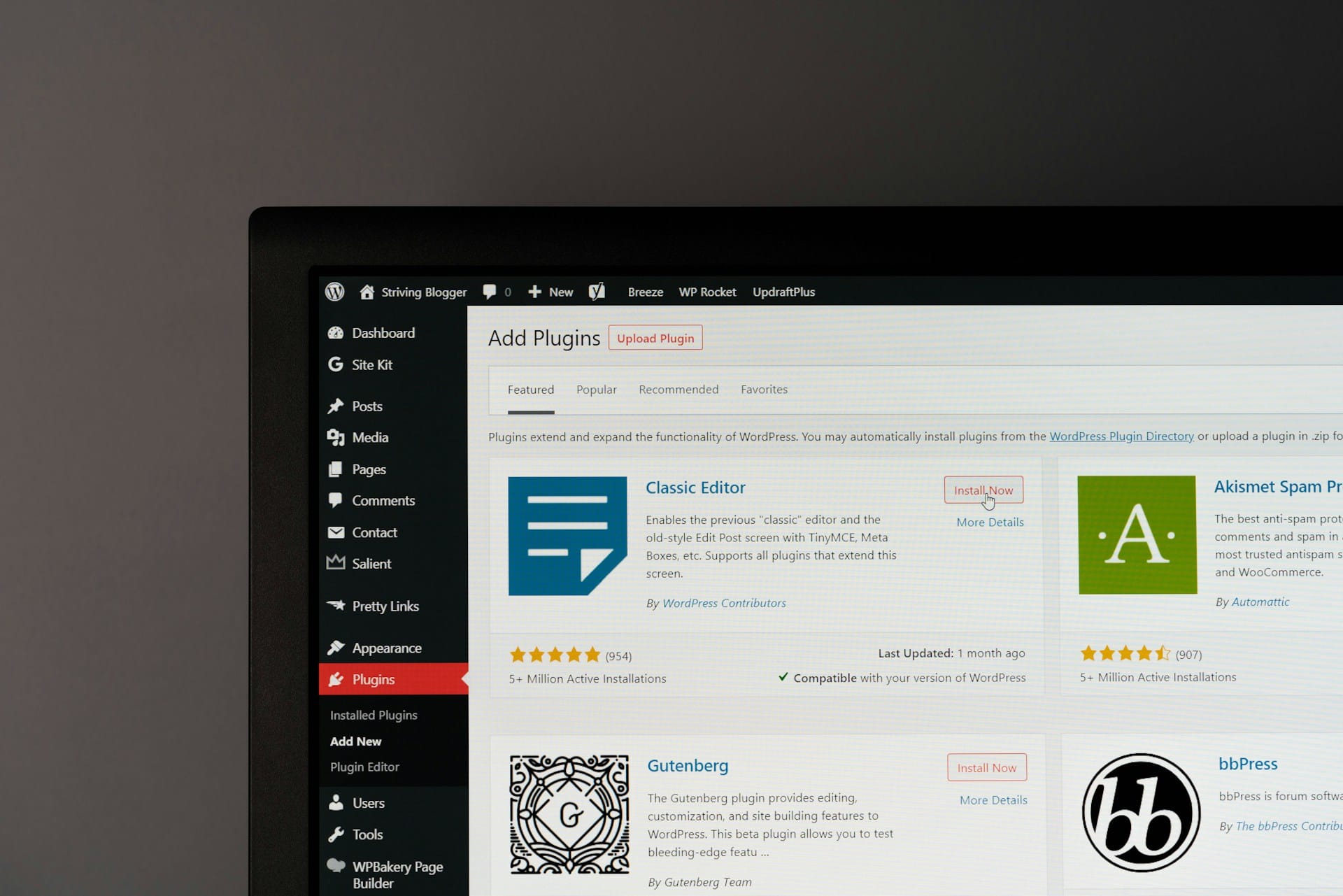
High load is rarely caused by WordPress itself. It is almost always one of these:
- Large unoptimized images
- Too many plugins
- Poor caching configuration
- Bots and spam traffic
- Inefficient themes or page builders
- External scripts loading slowly
- Database bloat
Fixing these areas typically reduces load dramatically.
Core Optimization Strategies That Still Work in 2026
1. Reduce Image Size and Weight
Images are one of the biggest hidden performance killers.
Best practices:
- Compress all images before upload
- Use modern formats like WebP or AVIF
- Serve scaled images, not full-size originals
- Use thumbnails where possible
A single oversized image can spike CPU and memory usage during processing.
2. Keep Pages Lean
Large pages require more processing.
Instead of one massive post:
- Split long content into multiple posts
- Use pagination (Part 1, Part 2, etc.)
- Reduce the number of posts per page to 5 or fewer
This reduces database queries and rendering time.
3. Limit Posts Per Page
Showing too many posts increases load.
Recommended:
- 5 posts per page
- Excerpts instead of full content on archives
This improves both speed and user experience.
High-Impact Plugins That Help Reduce Load
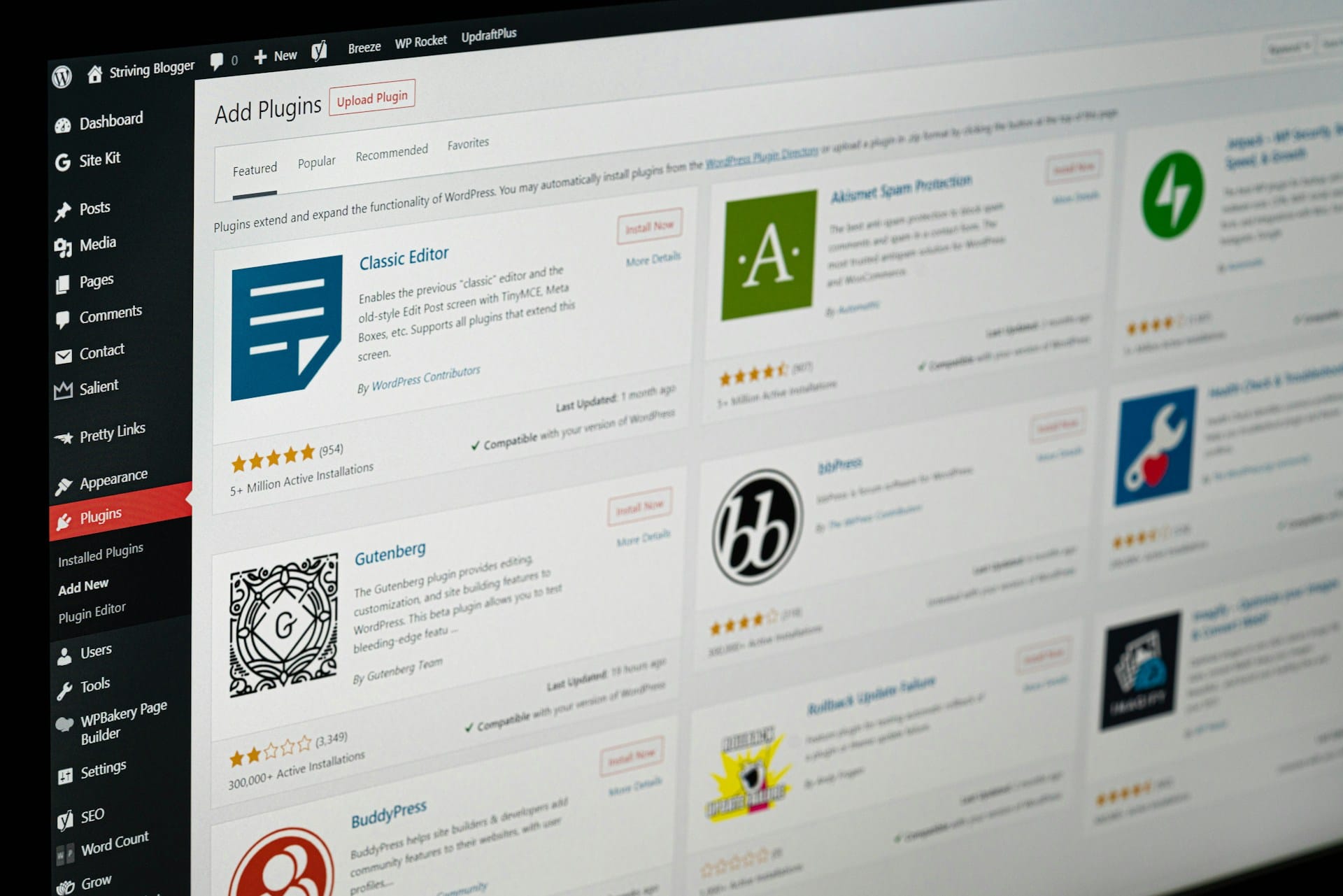
The right plugins reduce load. The wrong ones increase it.
Caching Plugins
Caching is the single biggest improvement you can make.
Top options:
- LiteSpeed Cache (best if your server supports LiteSpeed)
These convert dynamic PHP pages into static files, meaning:
- No database queries
- Minimal CPU usage
- Faster load times
If configured correctly, caching alone can reduce load by 70% or more.
Lazy Loading Images
Lazy loading ensures images only load when needed.
Modern WordPress includes built-in lazy loading, but advanced plugins improve it further.
This reduces:
- Initial page load time
- Server requests
- Bandwidth usage
Security and Spam Control
Blocking malicious traffic often reduces load more than any optimization tweak
Server-Level Optimizations That Make a Huge Difference
These are often overlooked but extremely powerful.
Enable Hotlink Protection
Hotlinking means other sites use your images directly.
This:
- Uses your bandwidth
- Increases server load
Enable hotlink protection in your control panel to stop this.
Use a CDN
A CDN like QUIC.cloud or Cloudflare:
- Offloads traffic from your server
- Caches static files globally
- Reduces CPU usage
This is now considered essential, not optional.
Upgrade Your Hosting Stack
Modern hosting matters more than ever.
Look for:
- LiteSpeed servers
- NVMe storage
- Built-in caching layers
- CloudLinux resource isolation
You can see an example of a modern optimized hosting stack here:
https://webhostpro.com/web-hosting
What to Remove Immediately
Heavy Plugins
Remove anything you do not actively use.
Even inactive plugins:
- Add file overhead
- Increase attack surface
- Can impact performance
XML Sitemap Generators (in some cases)
Many older sitemap plugins:
- Run frequent background processes
- Consume CPU
Modern SEO tools or even search engines themselves often make these unnecessary.
Translation Plugins
Global translation plugins:
- Dynamically rebuild pages
- Use significant CPU resources
If needed, use external translation services instead.
Excess Tags
Tags can:
- Create duplicate content
- Increase database size
- Add unnecessary queries
Focus on structured categories and keyword-driven SEO instead.
For deeper SEO strategies, see:
https://pageranked.com

Advanced Optimization (2026 Best Practices)
Object Caching
Using Redis or Memcached:
- Stores database queries in memory
- Reduces repeated queries
- Improves performance under load
Database Optimization
Regularly:
- Remove post revisions
- Clean spam comments
- Optimize tables
This reduces query time and server strain.
Bot and Traffic Control
Bots can account for a large portion of load.
Use:
- Firewall rules
- Cloudflare bot protection
- Rate limiting
This often reduces load instantly.
When It’s Not Optimization, It’s Scale
Sometimes your site is simply growing.
If you have:
- High traffic spikes
- Ecommerce activity
- Heavy API usage
Then the issue is not WordPress, it is capacity.
At that point:
- Move to VPS or dedicated hosting
- Use load balancing if needed
WordPress is not inherently heavy. Poor configuration is.
With proper setup:
- Caching handles most traffic
- Images are optimized
- Plugins are minimal
- Bots are controlled
Your site becomes fast, stable, and efficient.
If you are seeing high CPU usage, do not panic. In most cases, a few targeted fixes can cut your load dramatically and improve performance across the board.