

Keeping a WordPress site secure starts with one essential habit: backing it up. Whether you’re updating plugins, changing themes, or making major content edits, a backup can save your site from unexpected trouble.
Backuply is one of the easiest tools for creating full backups of your WordPress files and database. This guide will walk you through how to install it, set it up, run backups, and restore them when needed.
1. Accessing the Backuply Dashboard
Once Backuply is installed and activated, you’ll find it in the WordPress admin menu.
Open the Backuply tab to access everything: creating backups, viewing history, managing storage locations, and restoring backups.
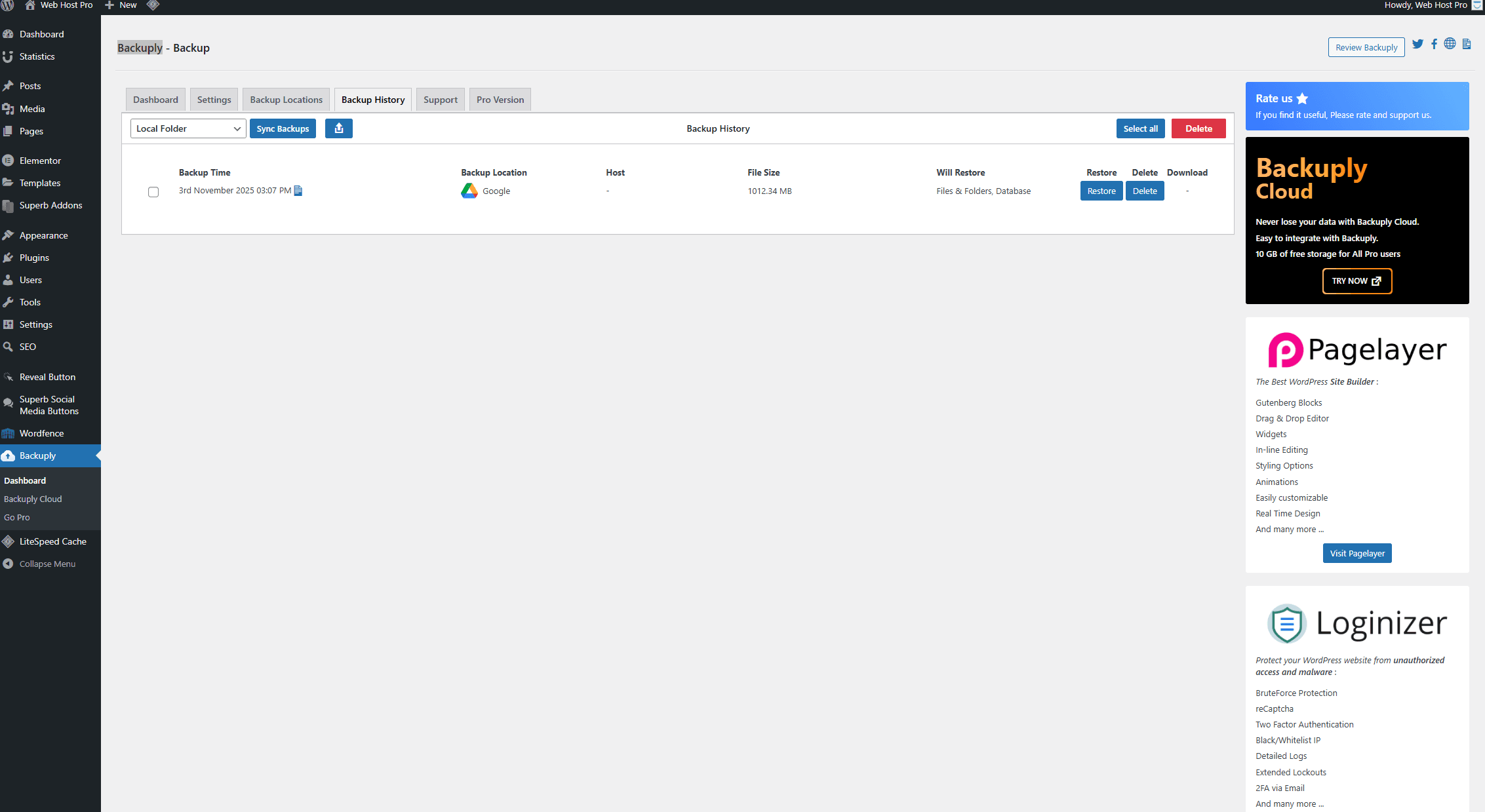
This screen shows your backup history, including storage location, file size, and restore options.
2. Setting Up Your Backup Locations
Backuply allows you to store backups locally or in cloud storage services like Google Drive.
To configure a storage location, click Backup Locations. Here you can add or edit destinations.
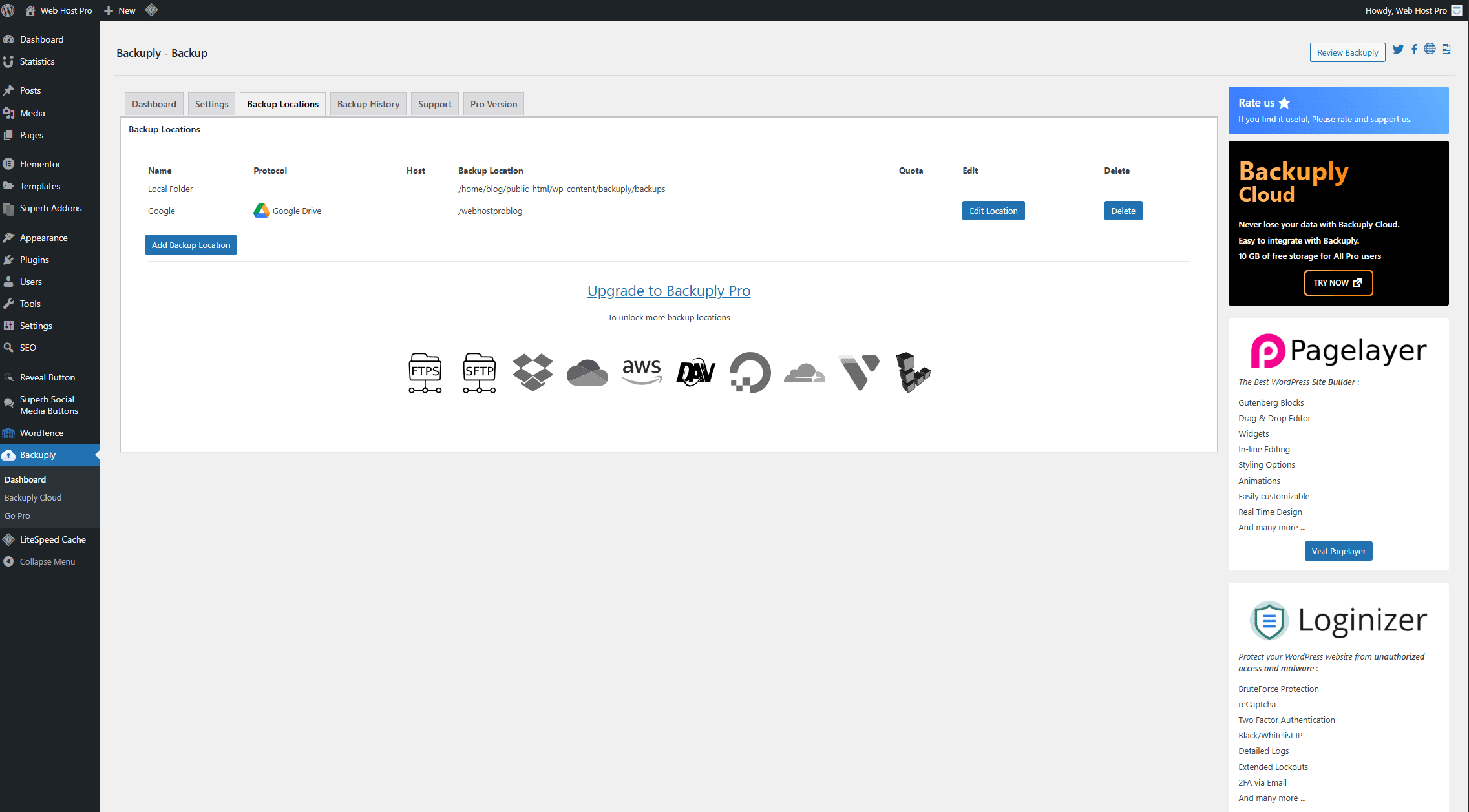
In this example, Google Drive has been added as a backup location. This keeps your backups safe even if something happens to your hosting account.
3. Configuring Your Backup Settings
Next, head to the Settings tab. This is where Backuply lets you customize how your backups work.
You’ll find options for:
• Backing up files
• Backing up the database
• Auto-backup schedules
• Excluding certain folders or tables
• Adding an email for notifications
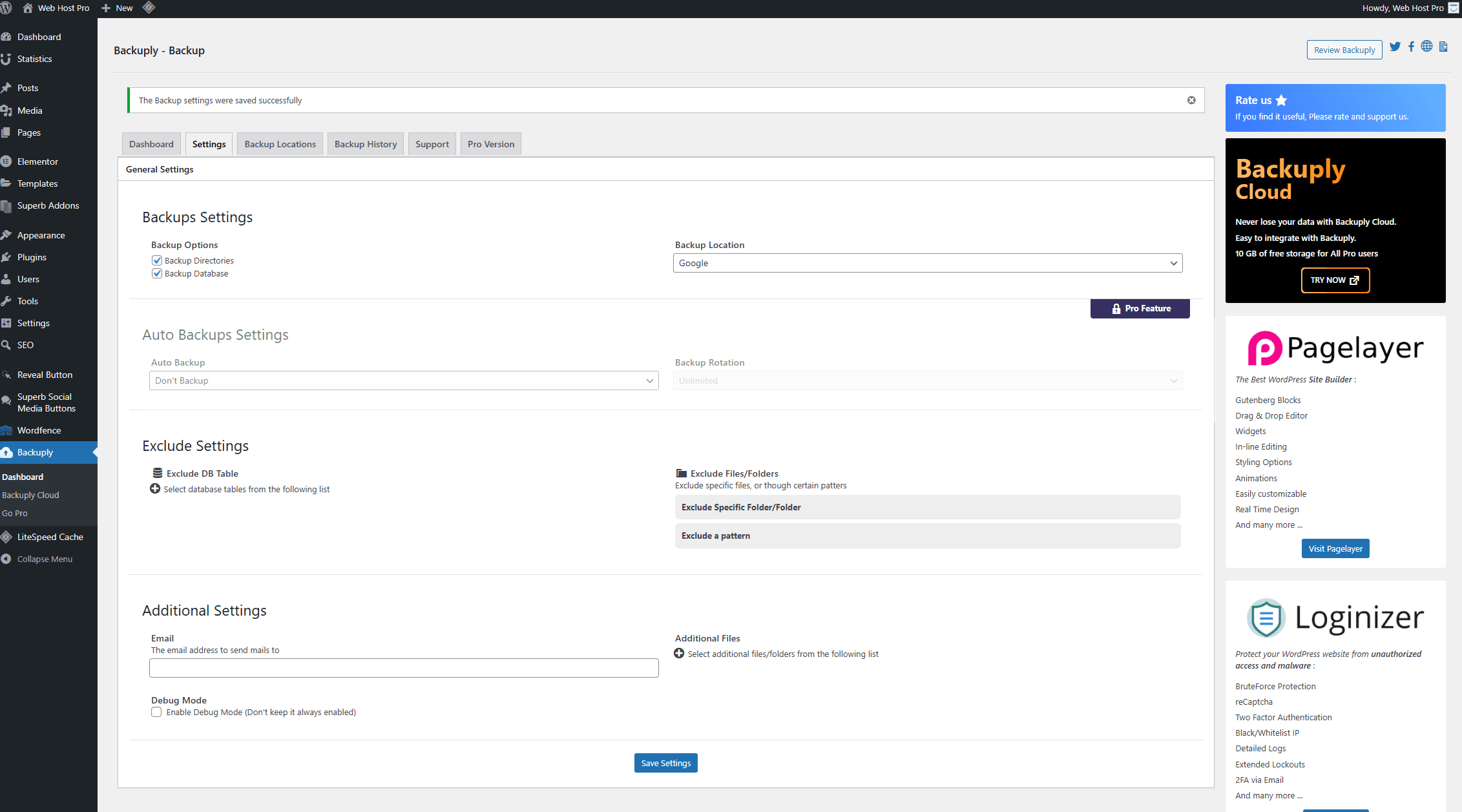
For most websites, the best setup is:
• Backup Directories enabled
• Backup Database enabled
• Auto Backup set to your preferred schedule (daily or weekly is common)
Click Save Settings once you’re done.
4. Creating a Backup
Now it’s time to run your first backup. Go back to the Dashboard tab and choose your backup location from the dropdown. Then select Create Backup.
Backuply will begin processing your website files and database.
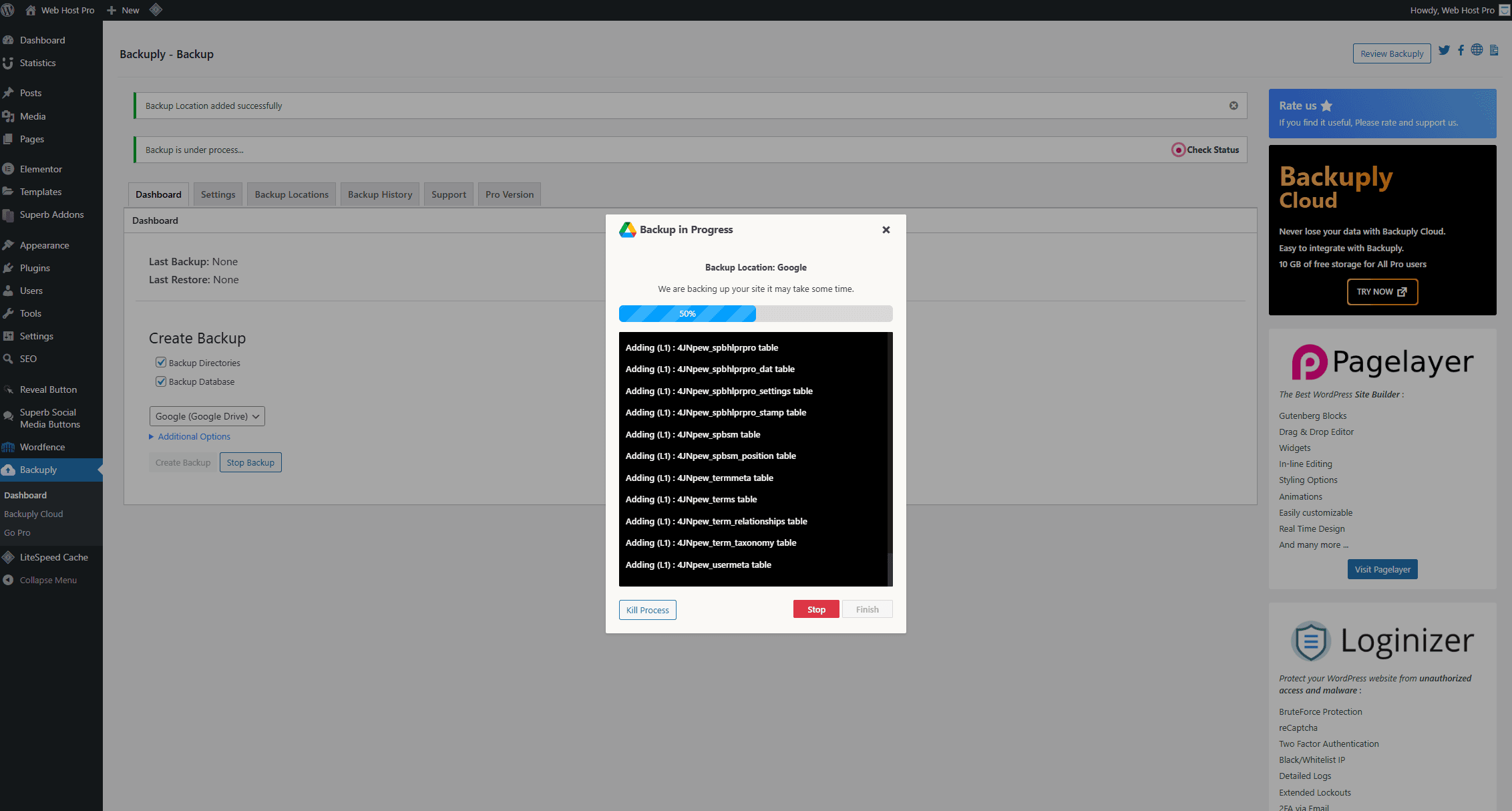
You’ll see a progress window showing each table and directory being added. When it completes, your backup will appear in the Backup History list.
5. Restoring a Backup
If something ever goes wrong on your site:
• Go to Backup History
• Find the backup you want to use
• Click Restore
Backuply will automatically restore your files, database, or both depending on what the backup contains. This can bring your site back to a previous working condition within minutes.
Final Thoughts
Backuply is a simple but powerful tool for keeping your WordPress website protected. It offers clean controls, reliable cloud integration, and quick restore options that anyone can use.
If your business depends on your website, having regular backups is one of the best safety nets you can set up. Backuply makes the process effortless.