

The passage gives ergonomic guidance for computer use, focusing on chair, desk, keyboard, monitor, and lighting setup. It emphasizes neutral wrist position, supported sitting, and keeping devices close to reduce strain on the back, neck, shoulders, and eyes.
It also recommends regular movement breaks, stretching, and paying attention to discomfort throughout the day. The overall message is that small workstation adjustments and habits can make long periods at a computer more comfortable.
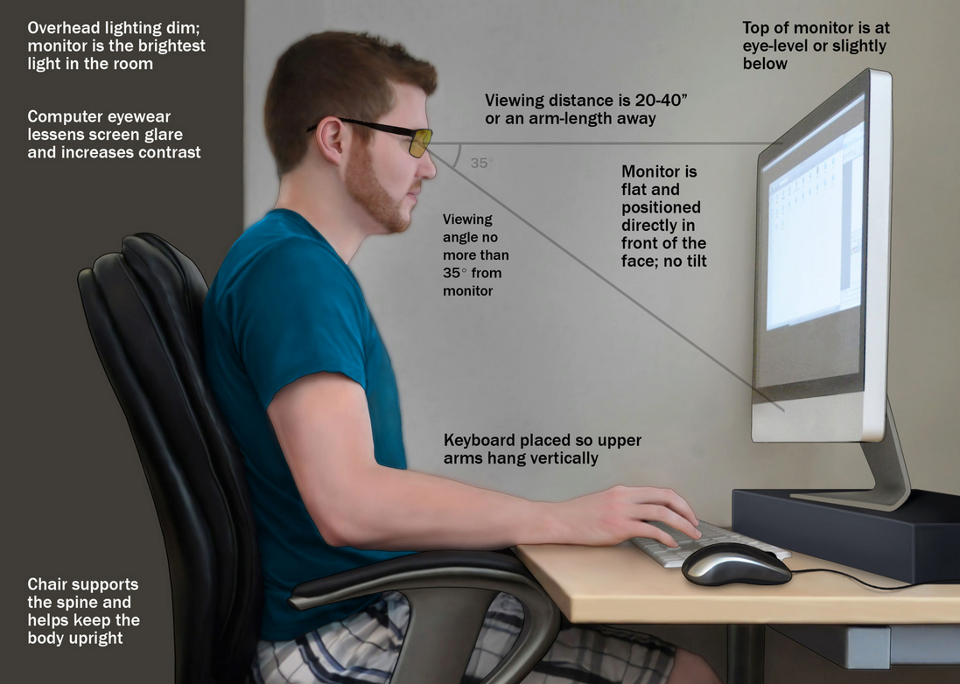
- Sit upright and comfortably. Keep your back supported, shoulders relaxed, and avoid leaning forward for long periods.
- Sit close to your keyboard. You should be able to type without reaching or extending your arms.
- Adjust your keyboard height. Position it so your elbows stay close to your body and bend at roughly a 90-degree angle.
- Adjust the keyboard angle. Choose a tilt that allows your wrists to remain straight and relaxed while typing.
- Use wrist support appropriately. A wrist rest can provide support during pauses, but avoid pressing your wrists into it while actively typing.
- Position your monitor correctly. Keep it directly in front of you, about an arm’s length away, with the top of the screen at or slightly below eye level.
- Keep documents within easy view. Place frequently referenced documents directly in front of you or use an in-line document holder to reduce repeated neck movement.
- Consider an adjustable keyboard tray. An articulating tray can help position your keyboard and mouse at a more comfortable height and angle.
- Take regular movement breaks. Stand, stretch, or walk briefly throughout the day to reduce muscle tension and stiffness.
- Stretch your hands and fingers. Gentle hand, finger, and wrist stretches can help reduce tension caused by repetitive computer use.
Serious About Improving Your Computer Posture?
Good posture while working at a computer can make a significant difference in your comfort, productivity, and long-term physical health. A properly arranged workspace helps reduce unnecessary strain on your back, neck, shoulders, wrists, and eyes.
Here are ten ways to improve your workstation and daily habits:
- Adjust Your Chair
Use a supportive chair and adjust its height so your feet rest flat on the floor. Your knees should be approximately level with your hips, and the chair should provide comfortable support for your lower back. - Set the Proper Desk Height
Your desk or keyboard surface should allow your elbows to remain close to your body with your forearms roughly parallel to the floor. - Position Your Monitor Properly
Place your monitor directly in front of you at approximately an arm’s length away. The top of the screen should generally be at or slightly below eye level so you can view it without repeatedly tilting your head. - Keep Your Keyboard and Mouse Close
Position your keyboard and mouse where you can comfortably reach them without stretching your arms or leaning forward. Keep your wrists straight and your shoulders relaxed. - Give Your Eyes Regular Breaks
To help reduce digital eye strain, try the 20-20-20 rule: every 20 minutes, look at something approximately 20 feet away for at least 20 seconds. - Move Throughout the Day
Even excellent posture should not be maintained in exactly the same position for hours. Stand, stretch, change positions, or walk briefly throughout your workday. - Use a Footrest if Needed
If your feet do not comfortably reach the floor after adjusting your chair to the proper height, use a footrest to provide stable support. - Maintain a Neutral Wrist Position
Keep your wrists as straight and relaxed as possible while typing or using a mouse. Avoid repeatedly bending them upward, downward, or to the side. - Improve Your Lighting
Use enough ambient lighting to see comfortably while minimizing glare and reflections on your monitor. Adjusting screen brightness to match the surrounding room can also help reduce eye strain. - Pay Attention to Your Body
Posture is not something you set once and forget. If you notice yourself slouching, leaning forward, raising your shoulders, or experiencing discomfort, adjust your position or take a short break.
A comfortable workstation should be designed around you, rather than forcing your body to adapt to your desk, chair, or computer. Small ergonomic improvements combined with regular movement can make long hours at a computer considerably more comfortable.